
White Paper
InstallShield Secrets
Time-saving tips for faster installation builds!
InstallShield offers all sorts of ways to build installations better and faster. In fact, there are probably ways to use it that you didn’t realize were there. Here are some great secrets and practical tips to help you get even more out of InstallShield.
SECRET #1
Script Editors in InstallShield
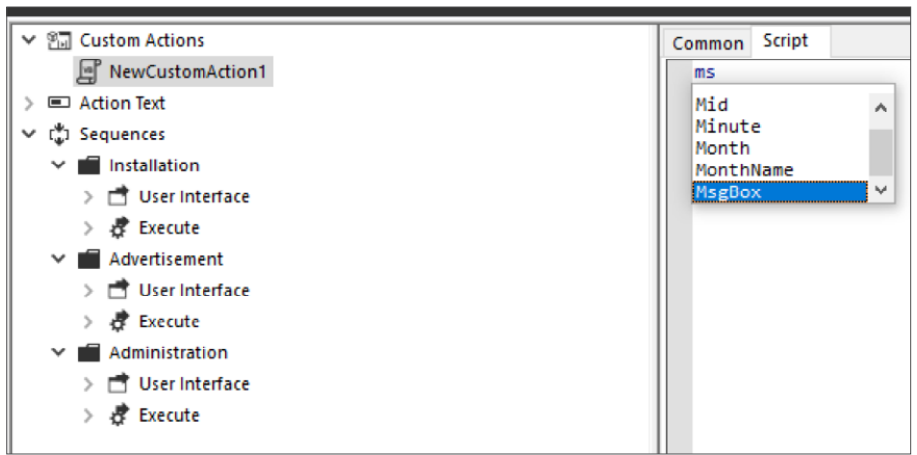
Did you want to edit a script without moving away from InstallShield? The product has you covered with a powerful intellisense for VBScript, InstallScript and Powershell. You no longer need editors outside of the product to make changes to your scripts.
SECRET #2
Standalone Build
InstallShield comes with a full GUI designer interface. While full IDE interface is very helpful and gets things done in a more intuitive fashion, it helps you out as you begin creating the installation. Once you are done authoring your project, the next stage is “builds” on a regular basis. Why should you open your project in the designer to do a build? That’s where adding on Standalone Build (SAB) to InstallShield comes in handy. SAB is a very simple command line build utility, which will help you build your projects on a machine without a full designer interface.
SECRET #3
Reference Tracking
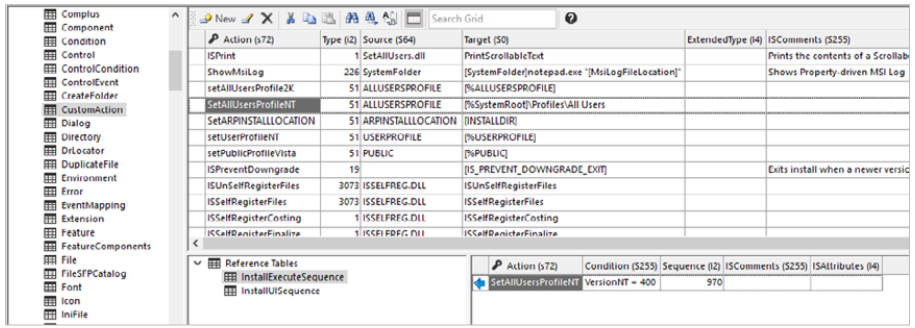
While you always had access to direct editor, did you know that it now includes reference tracking to data from other tables? You can easily find out which tables refer the item you selected by merely clicking on the row. If this data is overwhelming, you can add it by using the switch in the table toolbar.
SECRET #4
Setups That Expire
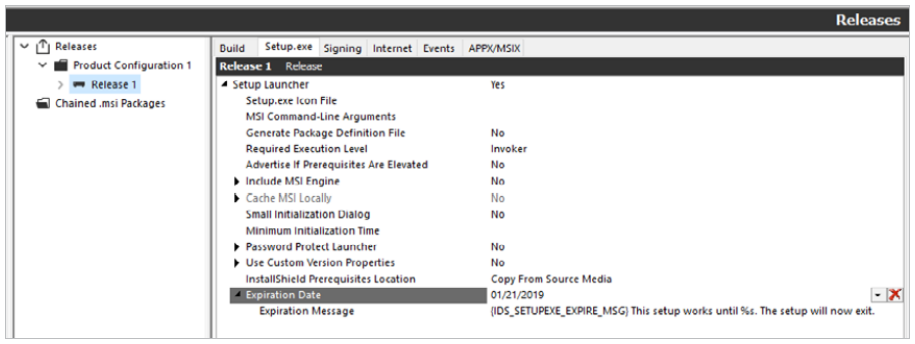
Did you know you can create self-destructing setups that expire after a date? If you ever wanted to provide a setup to a particular customer or a run beta that expires after “sometime,” this may come in handy. Configure that in the releases view and give beta builds to your customers easily.
SECRET #5
“Auto” to “Wizard” Creates Project File
File → Open is known to you if you’ve tried to reverse engineer a vendor MSI Package, but did you know that by changing the DropDown list for “Open As” from “Auto” to “Wizard” that instead of opening the project, it will let you create a new project file?
Obviously, there are other possibilities as well. Generally, this works because most records in the project file have a 1:1 mapping with the MSI database, making backwards conversion possible.
Here is how you can use this:
- Regaining Project sources, if the original project file was lost
- Changing an Uncompressed package into a Compressed package by creating a new release configuration in the new Project file
- Converting an MSI built with a different tool to an InstallShield project (i.e. Wise, Wix, Orca, InstallAware, etc.)
SECRET #6
XML System Searches
Need a value from an XML File? Put down that Script! While not natively supported by Windows Installer, InstallShield has quietly supported this functionality for years via a C++ *.dll custom action. Simply view the Help to find more details.
SECRET #7
Use Property References All Over the Place
If you find yourself saying, “I wish X feature could use a Property reference”, there’s a sort of process you can go through to figure out if this is a possibility:
- Check to see where the Table data is stored. Basically, type a descriptive string into the UI you are using to configure whatever data, and search for it in InstallShield’s Direct Editor.
- Once you’ve found the table record that holds your data entered in step 1, press ‘F1’ to bring up the Table Reference.
- If the field has a data type of ‘Formatted’, then it can use a Property Reference. There are some other field types that also support this formatting:
TEMPLATE
PATH
REGPATH
ANYPATH
FORMATTED
SDDLTEXT
SHORTCUT
InstallShield-specific tables (generally named like ISxxx…) are a separate topic, however. Since these tables are used internally and are not intended to be manipulated directly, there’s no table reference for them.
However, while not advertised in all parts of the product, generally the InstallShield Developers will use the Windows Installer API “MsiFormatRecord” when processing a data table in an *.msi package:
MsiFormatRecord Function
http://msdn.microsoft.com/en-us/library/aa370109(VS.85).aspx
If a data table contains a string value of some sort that’s not obviously used as a Primary key, there’s a decent chance it will be formatted by the associated InstallShield Custom Action at runtime before the data is used. It’s best to try a property reference if you’re not certain, and see if this works for you.
SECRET #8
InstallShield MSI Tools
When you have an MSI that doesn’t work quite right, what do you do? That’s what these were designed for. The InstallShield Help contains information on these, but let’s look at a list of what’s most useful:
MSIDiff.exe — Allows a Visual Diff of two MSI databases. Incredibly useful when some new revision breaks, and you are not certain why. Also if you are trying to diagnose a tough patching issue where the state of the database tables becomes very relevant.
MsiSleuth.exe — Allows you to see the various Product, Feature and Component states for MSI packages. It’s useful when Virtualizing MS Office, since Microsoft Office uses Windows Installer APIs to determine whether it should manually trigger a repair or not. You can add this tool to the sequenced App-V package.
RegSpyUI.exe — Not officially an “InstallShield MSI Tool”, this tool is a standard part of InstallShield, and gets placed here:
C:\Program Files\InstallShield\2010\Support\RegSpyUI.exe
This little tool lets you take control of extracting COM Information from a particular file. In the case of *.exe files, it simply runs the *.exe file with the /RegServer parameter. If your application doesn’t specifically handle this parameter, this will also capture other registry configurations that occur before the application exits.
SECRET #9
Making Order from Chaos
Sometimes it becomes necessary for records to be processed in a particular order. However, Windows Installer is not designed with this in mind, since like-operations are done at once instead of installing discrete units of files and registry data piece by piece.
One common scenario is the need to register *.dll files in a particular order, due to dependencies between the modules. Which, as we can see, the SelfReg table contains no ‘Order’ column with which to accomplish this.
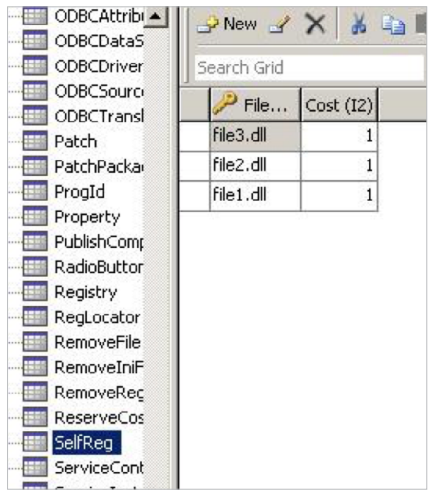
Luckily in this case, the InstallShield style of self-registration (a setting under Tools → Options → Preferences) uses the ISSelfReg table which contains an Order column:
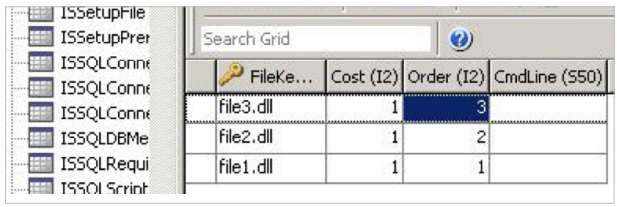
But what if the table didn’t have an ‘Order’ column? In the absence of a field that specifies the order in which records are to be processed, there are a couple of things that can be done to mitigate the issue of ordering.
Windows Installer, being just a database that gets processed by a Windows service (msiexec.exe), typically processes records in the order in which they are returned from the database. The order it uses for this is based on the order in which the records were entered into the database, so there are 2 methods of implementing the order here:
- Changing the Project File format from Binary to XML. This stores records in a human-readable format where you can specify a particular order, which determines how InstallShield inserts the records into the table while building the project.
- Cutting and pasting the records in question until they end up in the correct order. In some views of InstallShield, such as the XML File Changes view, records are displayed in the same order that they will be processed later, so if you’ve implemented it correctly, it will be visible here.
Frequently Asked Questions (FAQs)
InstallShield includes several lesser-known features that help teams build installations faster and more reliably. For example, the Standalone Build (SAB) lets you build projects via command line on build servers without needing the full IDE, streamlining CI/CD workflows. It also offers built-in script editors with IntelliSense for VBScript, InstallScript, and PowerShell, so you can edit and validate scripts directly in the tool. These capabilities reduce context switching, minimize errors, and shorten build times.
InstallShield Standalone Build (SAB) is designed for automated and repeatable builds on machines that don’t have the full InstallShield designer installed. It exposes a simple command-line interface that allows build servers to compile installer projects as part of a continuous integration pipeline. By separating authoring (in the IDE) from building (via SAB), teams avoid tying up development licenses and can scale builds across multiple environments. This leads to faster release cycles and more consistent MSI or setup outputs.
InstallShield’s built-in script editors support VBScript, InstallScript, and PowerShell, complete with IntelliSense. This means developers can write, edit, and troubleshoot install logic directly within InstallShield instead of switching to external editors. IntelliSense helps prevent syntax errors and speeds up scripting by suggesting functions and parameters as you type. The result is higher quality custom actions and less time spent managing scripts outside the installer project.
Yes, InstallShield can create time-limited or expiring setups, which are ideal for beta releases, evaluations, or customer-specific test builds. You can configure expiry behavior in the Releases view so that the installation stops working after a defined date. This approach helps protect your IP, control access to pre-release builds, and enforce trial periods without writing complex custom logic. It’s a powerful way to manage temporary distributions and proof-of-concept installations.
InstallShield lets you open an existing vendor MSI and convert it into a new InstallShield project file using a helpful “Wizard” option. Instead of opening the MSI in “Auto” mode, you change the “Open As” dropdown to “Wizard”, which walks you through creating a new project from the MSI database. This is useful when original project sources are lost, when you want to move from another tool (like Wise, WiX, or InstallAware), or when you need to change compression settings. Most MSI table records map closely to InstallShield’s project structure, making backward conversion practical in many cases.
InstallShield supports XML system searches so you can read values from XML files without writing custom scripts. Although Windows Installer doesn’t natively handle XML search, InstallShield implements it through a C++ DLL custom action that runs during installation. This allows you to pull configuration values, paths, or settings from existing XML files on the target system and use them as properties in your MSI. It’s a clean way to integrate with configuration-driven applications and environments.
Property references in InstallShield allow you to inject dynamic values into various fields in your MSI at install time. Many table fields that use the “Formatted” data type, as well as types like TEMPLATE, PATH, REGPATH, ANYPATH, SDDLTEXT, and SHORTCUT, can accept property references. A common workflow is to enter a recognizable string in the UI, locate it in the Direct Editor, and press F1 to see whether the field supports formatted data. If it does, you can replace that static string with a property and have Windows Installer format it at runtime, making your installations much more flexible and environment-aware.
InstallShield ships with several MSI tools that make diagnosing installer issues easier. MSIDiff.exe allows you to visually compare two MSI databases so you can see exactly what changed between versions, which is critical when new builds fail or patches misbehave. MsiSleuth.exe lets you inspect product, feature, and component states, helping you understand repair behavior and complex scenarios like virtualizing Microsoft Office. RegSpyUI.exe captures COM registration and registry changes for specific files or executables, giving you precise insight into what needs to be included in your installer.
By default, Windows Installer doesn’t provide an explicit “Order” column in the SelfReg table, which can be a problem when DLLs must be registered in a specific sequence. InstallShield addresses this by using its own ISSelfReg table, which includes an Order column you can configure. This lets you define the exact registration order for modules that depend on one another. Controlling this order reduces registration errors and ensures complex COM or DLL dependencies are correctly initialized on the target system.
When a Windows Installer table doesn’t have a built-in field for ordering, there are still ways to influence record processing. One option is to switch your InstallShield project file format from binary to XML, which lets you control the order records are written and therefore the order they are processed. Another method is to cut and paste records in certain views (like XML File Changes) until they appear in the desired sequence, as those views often reflect the processing order. These techniques help you manage subtle sequencing requirements without extensive custom code.
Resources
Webinar
The Installation Playbook: Avoiding Patching Pitfalls and Delivering Changes with Confidence
Join us for this Revenera webinar where we’ll explore the real‑world challenges teams face when creating and rolling out updates, from installer complexity and testing gaps to rollout impact and recovery when things go wrong.
Report
Enable Successful Software Installs with New Digital Signing Standards
This guide explores changes to digital signing standards to equip you with the knowledge and tools necessary to navigate them effectively for a seamless installation.
Webinar
Migrating from heritage installer technologies
Register for the upcoming webinar to learn about best practices for reviewing and updating your installation and deployment strategies, and the risks of maintaining outdated systems.
Best Practices
Legacy Software Installers’ Hidden Risks and How to Migrate Them
Learn about the hidden risks of legacy software installers and how they can impact your product’s security, performance, and compliance. This guide reveals common misconceptions and outlines best practices for modernizing your installation strategy.
Webinar
Flexibility Meets Scalability: Why Dev Teams Are Moving to InstallShield CLS
Register for the upcoming webinar to learn how InstallShield Cloud License Server (CLS) streamlines cloud integration while supporting on-premise setups..
Data Sheet
InstallAnywhere 2026
Create multiplatform installations for physical, virtual and cloud environments.
Want to learn more?
Whether you are an existing customer needing assistance, or new to Revenera's Software Installation solutions, we are happy to help out with your Installation needs.